Lightroom Golden Warm Tone Editing | Free Lightroom Presets Golden Warm
Lightroom Golden Warm Tone Editing
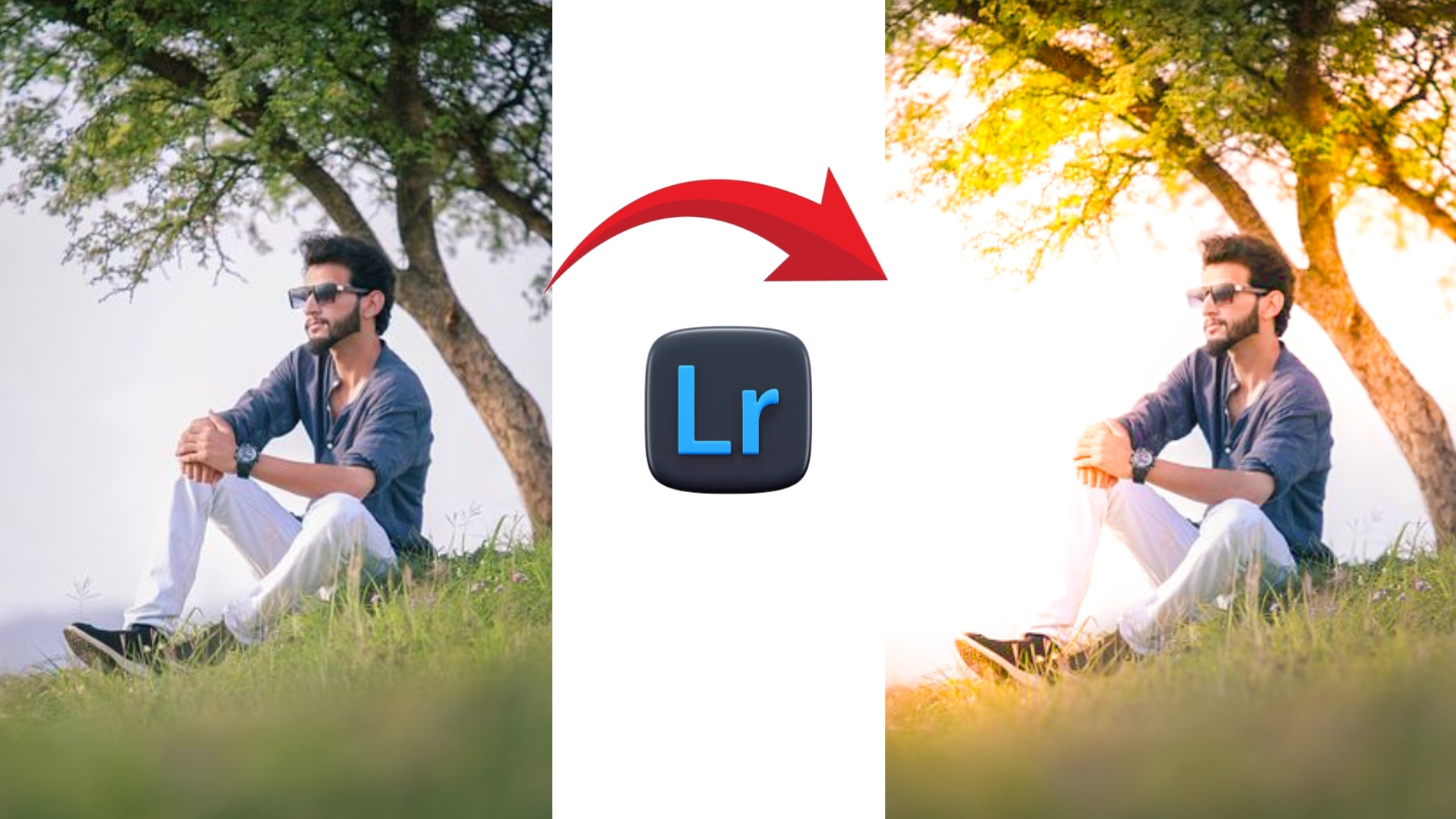
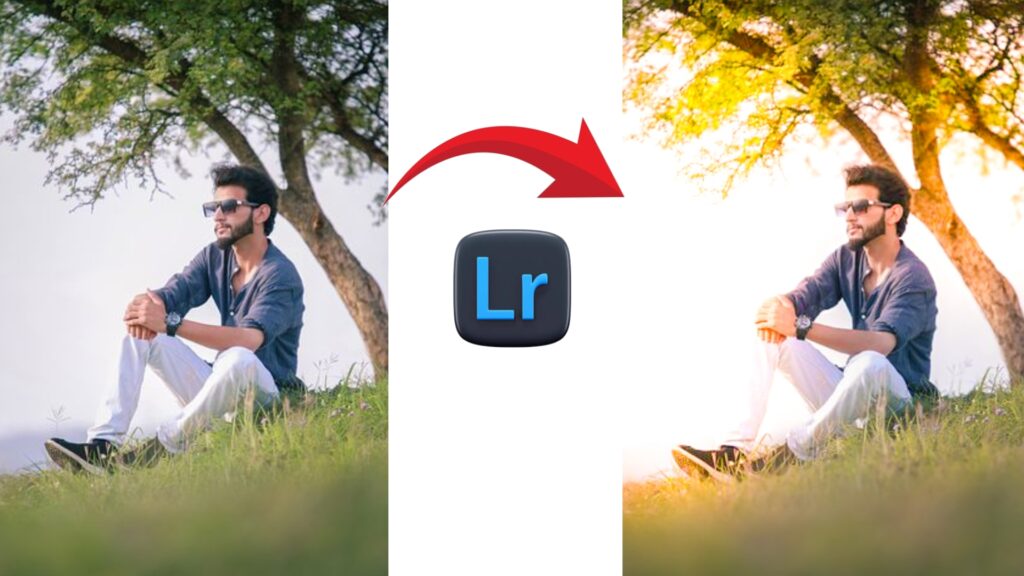
Lightroom Golden Warm Tone Editing | Free Lightroom Presets Golden Warm , With the Lightroom mobile photo editing app, you can do some of the best photo editing that’s trending on Instagram.
It is very easy to make it. If you want to edit such a wonderful golden warm effect in your image, then know how to do it in Lightroom. Also, in the end, you will get a golden warm Lightroom free Preset will also get .
Lightroom Golden Warm Tone Editing
A normal photo looks boring without color grading, but if a perfect color grading is done to it, it gives a cinematic vibe in such a situation, we will learn to create Lightroom golden warm effect, how to use color, light, masking, we will know everything.
What is Golden Warm Lightroom Presets ?
The Golden Warm Effect preset creates a cinematic warm background that transforms the image into a professional image with sunlight-like morning light. It looks very beautiful and you can use it in your image.
Key Features Golden Warm Tone Lightroom
- Bright and clean golden warm
- Soft cinematic look contrast
- Sunlight-like effect image
- Film style fade and smooth blur texture
- Low yellow saturation for a primium
Best Photo for This Image
Below you are shown a photo with Golden Warm Tone Lightroom Presets in which you can see all the details, your image will also look beautiful in the same way.

- Mobile photography
- Pre wedding shoot and couple shoot।
- Fashion and lifestyle photography
- Indoor and outdoor daylight photo
This preset can be used in Mobile Photography, Wedding Outdoor Shot Images
How to use Golden Warm Tone Lightroom Presets
- First, download the Golden warm effect tone Preset
- Now open it in your lightroom.
- After this, click on the three dots on the side and click on Copy Settings.
- Now open your image in Lightroom
- Then correct the cropping of your image instgram post size
- Click on the three dots again and then click on Paste Settings.
- The preset will now be applied to your image.
Note : If you want to add the perfect golden warm tone to your images, make sure to click your images during the golden hour and soft light.
Conclusion
Golden Warm Tones Lightroom Editing lets you achieve a cinematic vibe in your images with a warm background This is a favorite photo tone among photographers and content creators, which is why these Lightroom Presets always go viral.




1 thought on “Lightroom Golden Warm Tone Editing | Free Lightroom Presets Golden Warm”